Drawing Intelligence

Your P&IDs.
Connected.

Search your P&IDs. Trace equipment across sheets. Review changes together, with every result linked to its source.

Connected P&IDs

Follow equipment, pipework and references across your drawing library. Keep every connection linked to its source drawing.

Connected P&IDs

Asset recognition

Identify equipment in your P&IDs and connect it to your asset records. See which equipment and drawings are missing from the records you have.

Asset recognition

Engineering understanding

More than symbols.
The system behind them.

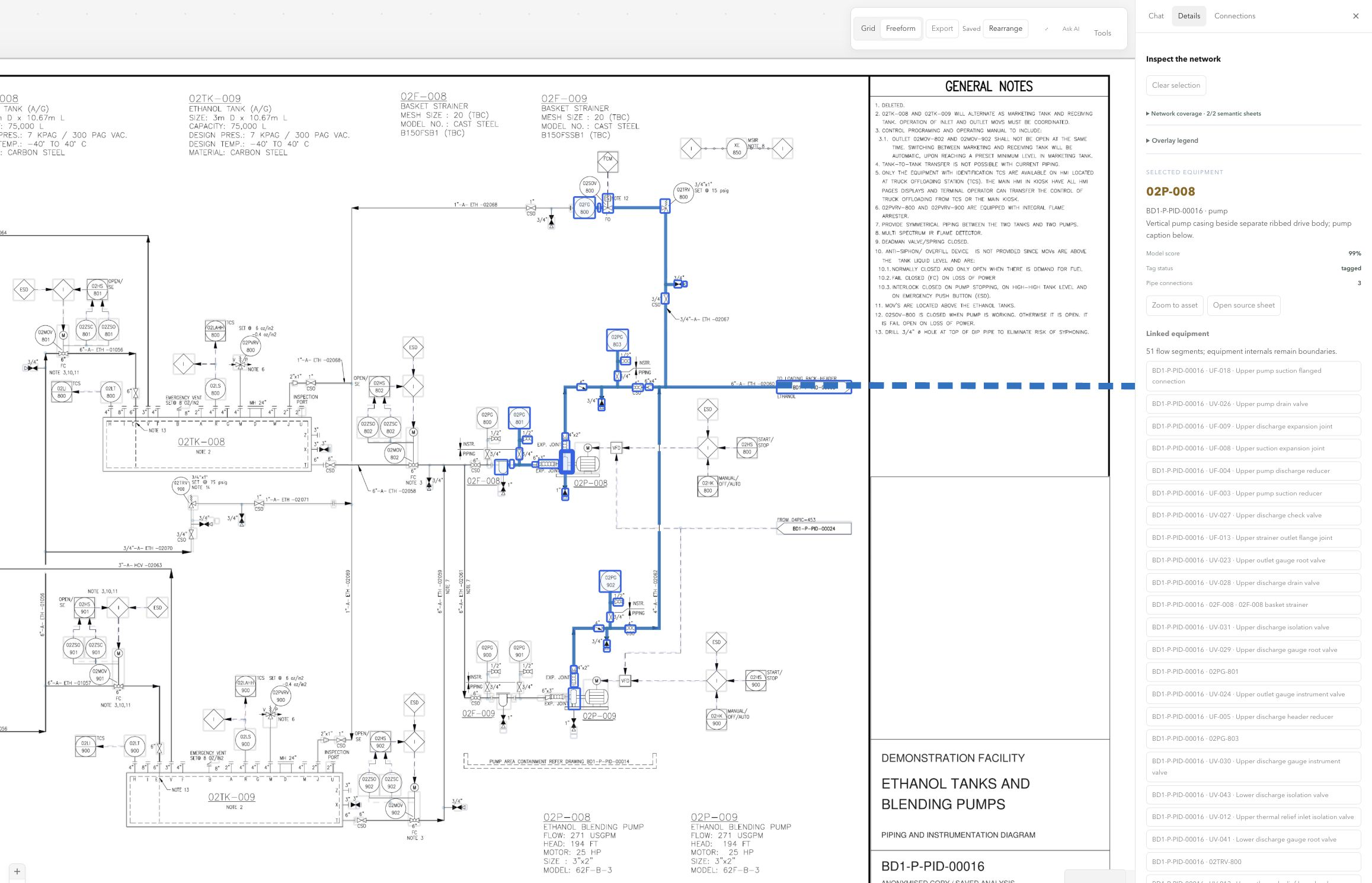
A P&ID contains more than equipment labels. Drawing Intelligence connects the assets, the pipework, the references and the engineering information into one searchable picture.

Identify the equipment. Read the tags.

Detect pumps, valves, instruments and other equipment in your P&IDs. Extract their tags and connect each identified asset to its position on the source drawing.

Equipment recognition · Asset identity · Source location

Understand the pipework, too.

Follow the line through the drawing, distinguish pipe crossings from connected junctions, and resolve continuation points between sheets. See how the process connects across the entire P&ID map.

Pipe topology · Junctions & crossings · Cross-sheet connections

Find what your asset register missed.

Compare the drawing-derived equipment with your uploaded asset register. Surface equipment found only in the P&IDs, register records without a drawing match, and identities that need reconciliation.

Matched assets · Drawing-only equipment · Unmatched records

Spot missing drawings. Keep the evidence.

Audit the references in your library against the drawings you have uploaded. Extract the notes and off-sheet references that point to missing documents, so the team can see what is absent and where it was mentioned.

Drawing audit · Extracted notes · Missing references

Asset & drawing audits

See the gaps.
Know where to look.

Put the drawing library and asset register alongside each other. Turn missing equipment, unmatched records and missing referenced sheets into a reviewable list, with the source evidence attached.

Reconcile the equipment.

Find the difference between the assets in the drawings and the records in your register.

Asset-register reconciliation

Complete the drawing library.

See which referenced documents are missing and retain their extracted notes and drawing references.

Missing references & source notes

AI & collaborative redlining

Redlining,
revolutionised.

Make the change where you find it. Redline a drawing in the field, edit equipment with AI and keep the whole team on the same page across the entire connected P&ID map.

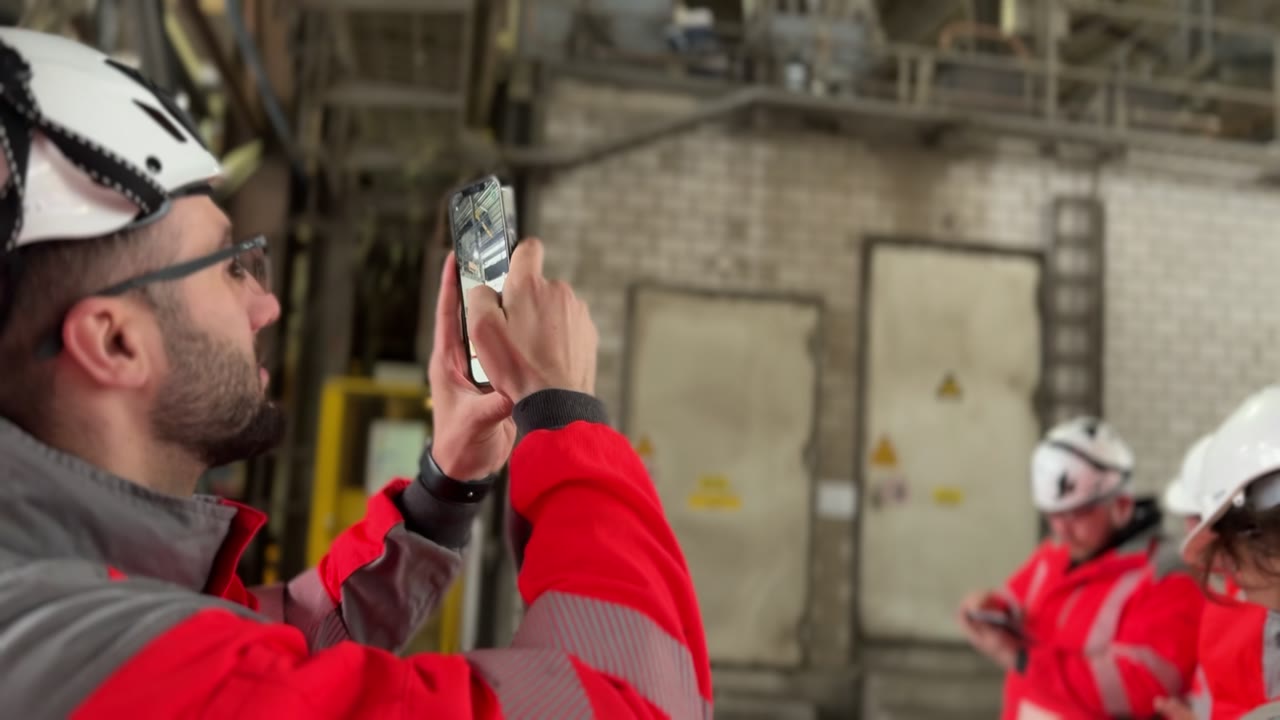
The person at the asset and the team in the office work in the same live drawing workspace.

Live collaboration

In the field. In the office. In sync.

3 people connected

Mobile · iOS & Android

At the equipment.

Capture the change where you find it.
A
AlexAt the equipment
Connected

iPad · Field team

Across the plant.

Review the same drawing, together.
S
SamOn the plant
Connected

MacBook Pro · Engineering

Back at the office.

See every field change as it happens.
M
MorganEngineering office
Connected
Scroll to redline XV-202.The same change appears on every screen.

AI-based redlining

Point to the asset.
Say what needs to change.

Right-click a valve and say, “Change this to a gate valve.” Select a pump and ask for a screw pump. Highlight a missing section and say, “Add a valve here.”

AI updates the drawing in your live workspace. Capture the change at the equipment and collaborate immediately, instead of passing a marked-up file back and forth.

P&ID-103 Transfer system
Rev C Live workspace
P&ID-103TRANSFER SYSTEM / HEADER AREV CPIPTFIXV-118XV-202P-202TK-15CLARITY / CONNECTED ENGINEERINGTRANSFER SYSTEMP&ID-103REV C → D
XV-202 · Ball valve✧ Edit with AI

Change equipment
Insert connected equipment
Redline with the team

✧ Drawing AI

Change this to a gate valve.

✓Select equipment. Describe the change.Draft revision D

Field changes remain in the drawing’s revision and review workflow.

Cross-drawing redlining

The whole system.
One redline workspace.

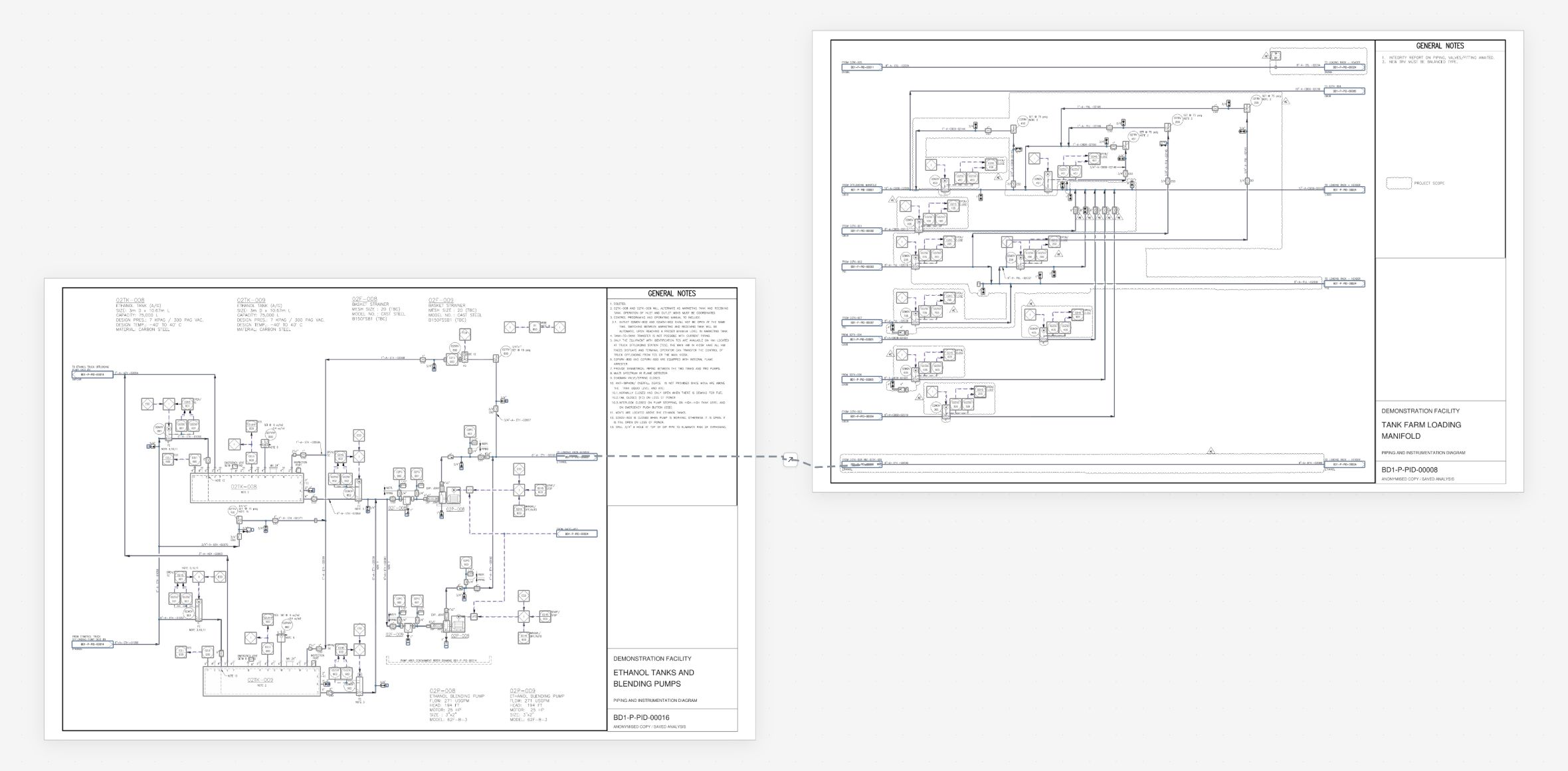
We developed the first cross-drawing redlining tool to follow the engineering system across the entire P&ID map. A line, an asset or a change can continue across connected drawings.

Carry the redline through continuation points. Keep the conversation, the change and the connected pages together in one shared workspace.

Across drawingsFollow the system beyond the page
Across the teamField and office, connected live
Redline RL-0142 connected P&IDsOne shared change
Two distinct anonymised P&ID sheets: BD1-P-PID-00016 ethanol tanks and blending pumps, connected to BD1-P-PID-00008 tank farm loading manifold
P&ID-00016 → P&ID-00008One redline continues through the linked drawing reference.
Equipment and connections in the HyBird drawing workspace
Interconnected engineering drawings in PID StudioDrawings connected across the facility

From spatial understanding to engineering

Bring your drawings.
Or let us generate them.

Validate what you have.

Upload the drawing library. Our AI validates it against the facility’s spatial intelligence, tags the equipment and connects each drawing to the assets in the 3D model.

Generate what is missing.

No P&IDs? HyBird generates them from its understanding of the facility: the equipment and the connections between it. Engineers review the generated drawings before issue.

Keep the two connected.

As the plant changes, Reality Capture brings new field evidence into the model, its intelligence and the connected P&IDs.

Keep drawings aligned with the plant

Ask about the system.
See the evidence.

Find equipment, trace its connections, inspect source notes and explore the drawing map in the same workspace. The answer stays connected to the drawing and the asset it describes.

Keep classifications, inferred connections and proposed engineering actions in your team’s review workflow.

Bring us your drawing library
“Which pumps are missing from our register?”“Which referenced drawings are missing?”“Show the connected pipework.”
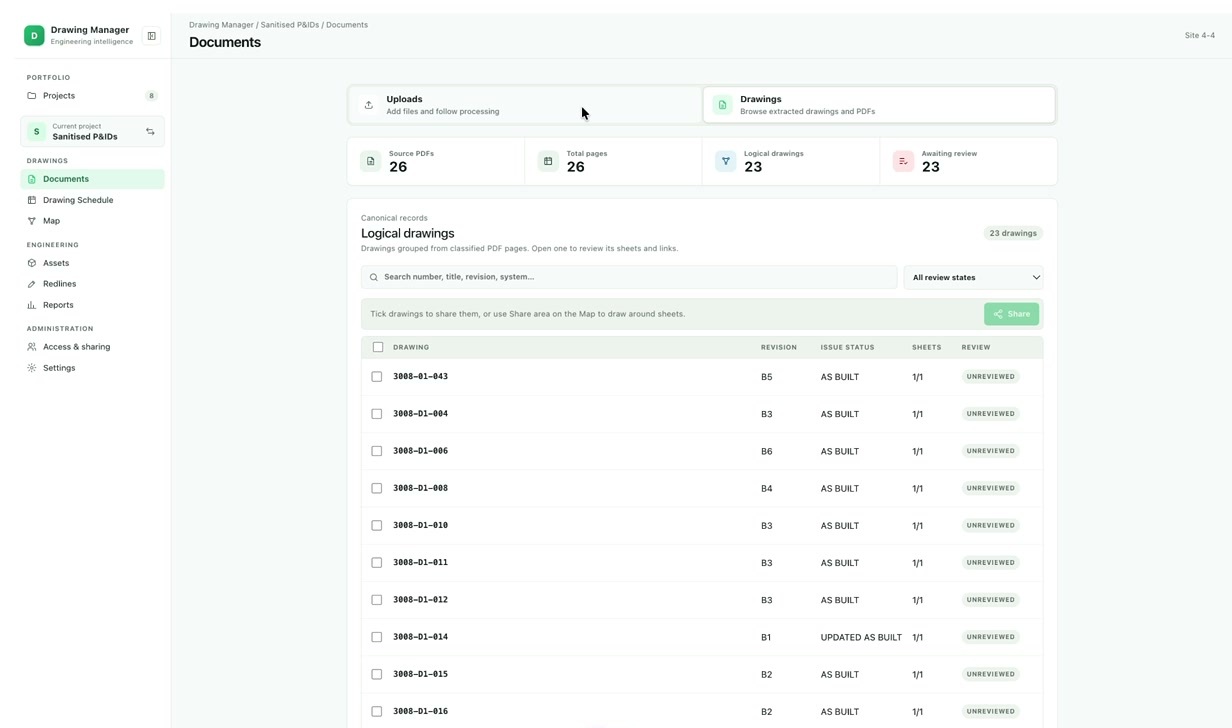
Drawing document control with revisions, issue states and source PDFs
Drawing document control in HyBird

Connected document control

Find the drawing.
Know it’s the right revision.

Open a drawing from the network and check its revision, review status and source file.

Review, approve and issue drawings through your team’s own document-control process.

Explore the Document Management
Jeremy Alberty

LBC Tank Terminals

“The AI driven P&ID analysis will be a gamechanger for asset management…”

Jeremy Alberty · Director of Operations, North America

Explore the LBC relationship ↗

Bring the drawings.
See what connects.

Bring the library you have. We’ll show you how to connect it and help define the first useful scope.

Talk to HyBird